History Panel and Read-Aloud Replay
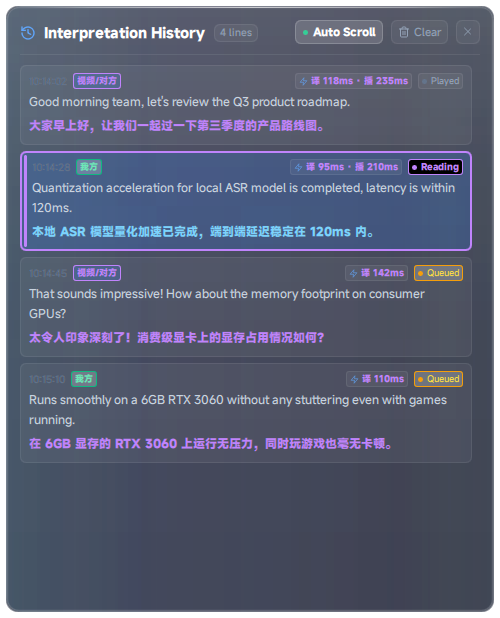
Missed a line in a meeting, a class, or a show? Open the Interpretation history panel to catch up. Records stay on your machine and the default cap is about 500 entries.
1. Open the Panel
- The History button on the right side of the subtitle control bar;
- Tray menu → Open history panel;
- Global hotkey
Ctrl + Shift + Y.
The window title is “Interpretation history panel.” With no records yet, it shows “No interpretation records.”
2. What the Panel Can Do
| Action | Description |
|---|---|
| Auto-scroll | Jump to the newest line when a new sentence arrives |
| Search | Search box under the title; when a keyword hits source or translation text, the list filters immediately |
| Clear | Clear the current history list |
| Export | Export the current list (including search filters) as a plain-text summary |
| Copy one entry | Hover an entry and click the copy icon to copy its source and translation |
| Replay | Hover an entry and click the audio bar to play that sentence again |
Read-aloud status may show as: Playing / Queued / Played / Skipped.
3. Tips
- For long meetings, check disk space and the history cap before you start (default 500 entries; older lines are pushed out of the in-memory list once the cap is hit).
- Need a permanent archive? Export text right after the meeting — do not rely only on runtime history.
- Used with two-way call: history lines include prefixes such as
[Them][Translation][Us]to help sort both sides of the conversation.
4. Notes
- Like the subtitles, history is stored only on your machine; TransBox is designed as a local interpretation tool.
- Cleared history cannot be restored from the UI; export first, then clear.
- If the panel shows no new data, confirm that top-track Source / Translation is on and the pipeline is running.