
Two-Way Interpreting Setup
You speak your language and the other side hears the translation; they speak a foreign language and you see subtitles or hear the translation. This page walks through how to set it up, step by step. For the modes and background, see the Two-Way Call Interpretation Wizard.
How it works (one minute)
TransBox sends the translated read-aloud (TTS) to the output device you pick. Different devices give different results:
| TTS output | Result |
|---|---|
| Headset / speakers | Only you hear the AI voice — use this to preview |
Virtual cable input (CABLE Input) | The AI voice is sent into the virtual cable |
A virtual cable has two ends: TransBox writes into CABLE Input, and your meeting or game reads from CABLE Output. So: in the voice settings of the meeting or game, set the microphone to CABLE Output, and the other side will hear the AI voice.
Step 1: Install the virtual sound card
The other side can only hear the translation through a virtual sound card. TransBox has a built-in installer for VB-CABLE (by VB-Audio, donationware):
- Open Settings → Call interpretation and click Auto-configure virtual sound card / driver (or install from the official VB-CABLE page).
- Grant administrator permission and click Install in the VB-Audio window.
- Restart the PC after installation so the devices appear.
- Back in Settings, click Re-detect. The virtual microphone and virtual speaker should show as ready.
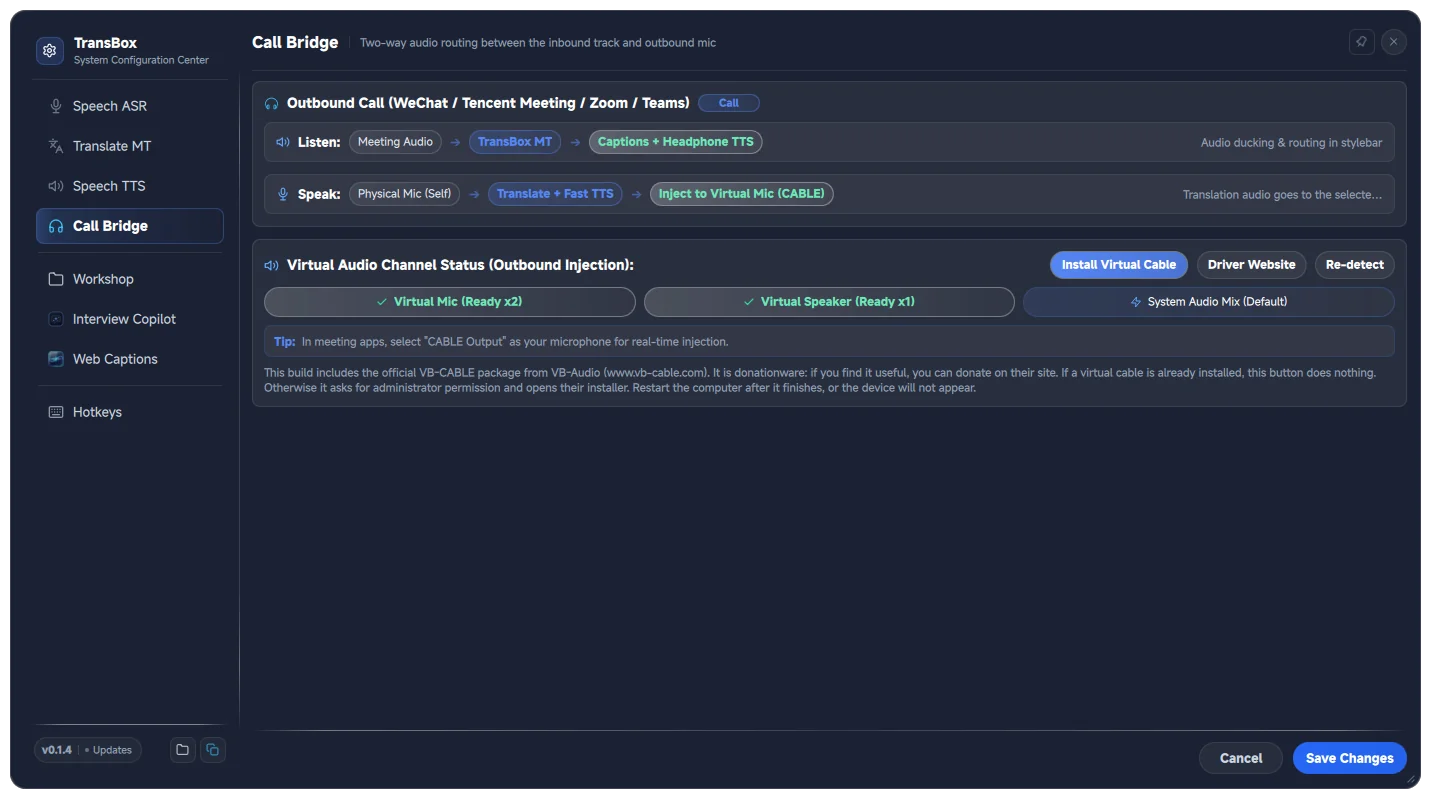
Step 2: Configure TransBox
On the subtitle bar, click [Two-way call] to expand your speaking row:
- Listen to the other side (inbound): set the audio source to the meeting app / game process, or "All system audio"; set the source and target languages; turn on Translation (optionally Source and Read aloud).
- Your speech (outbound): click Two-way call, choose your physical microphone; set I speak → to your language and They hear → to theirs.
- Output mode: choose Translated Voice (they hear the translation) or Original Voice (they hear your own voice, no translation).
Ctrl+Shift+Vswitches between them. - Output device (the "Output:" dropdown):
- First choose your headset/speakers, say a sentence, and confirm you can hear the translated voice (preview);
- then switch to
CABLE Input (VB-Audio Virtual Cable)so the voice is sent to the other side.
- Click Save & Apply if you changed anything in Settings.

TIP
Preview with your headset first and switch to CABLE Input only for real use — once switched, you no longer hear your own read-aloud in the headset. To avoid echo, see FAQ Q3.
Step 3: Set up the app you talk in
Whether it is a game, Zoom, Tencent Meeting, or Discord, the rule is the same — set the microphone / input device to CABLE Output (VB-Audio Virtual Cable):
Meeting apps: Audio settings → Microphone →
CABLE Output. Zoom example: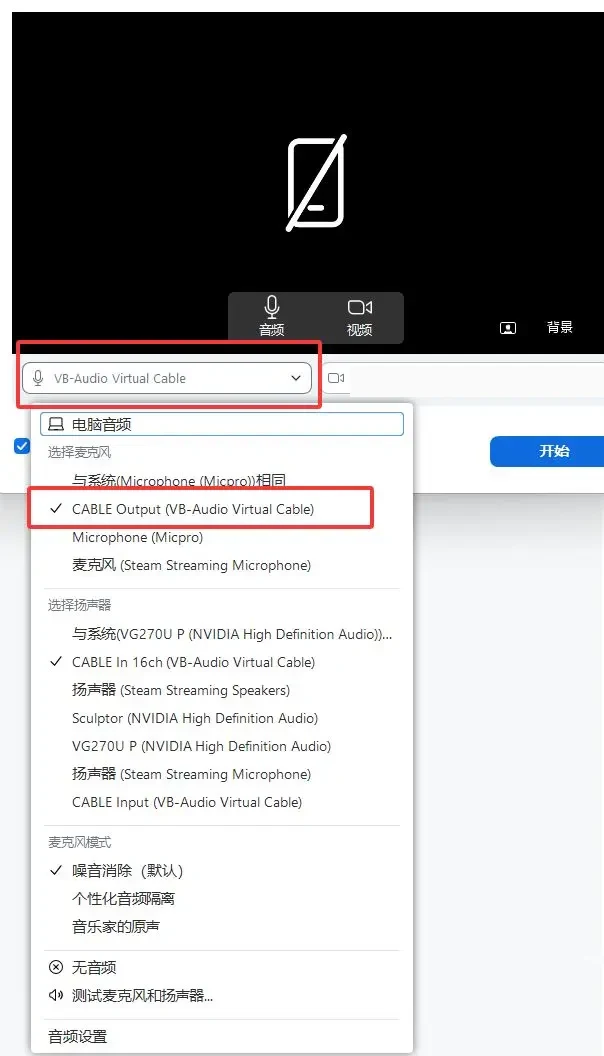
Games: in the game's audio / voice chat settings, find the voice chat input device / microphone and choose
CABLE Output(menu names differ by game). VRChat example: Settings → Audio Options → Microphone, click Change input device and pickCABLE Output.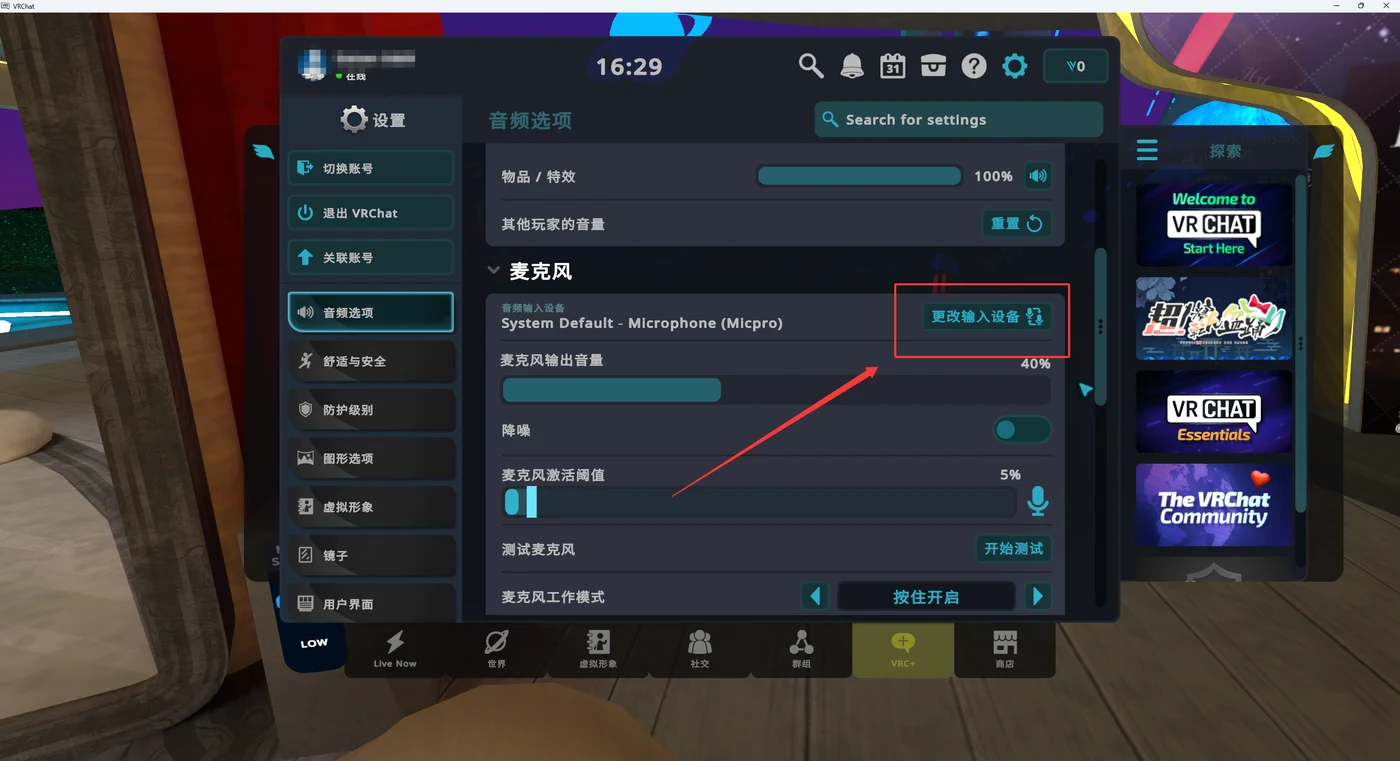
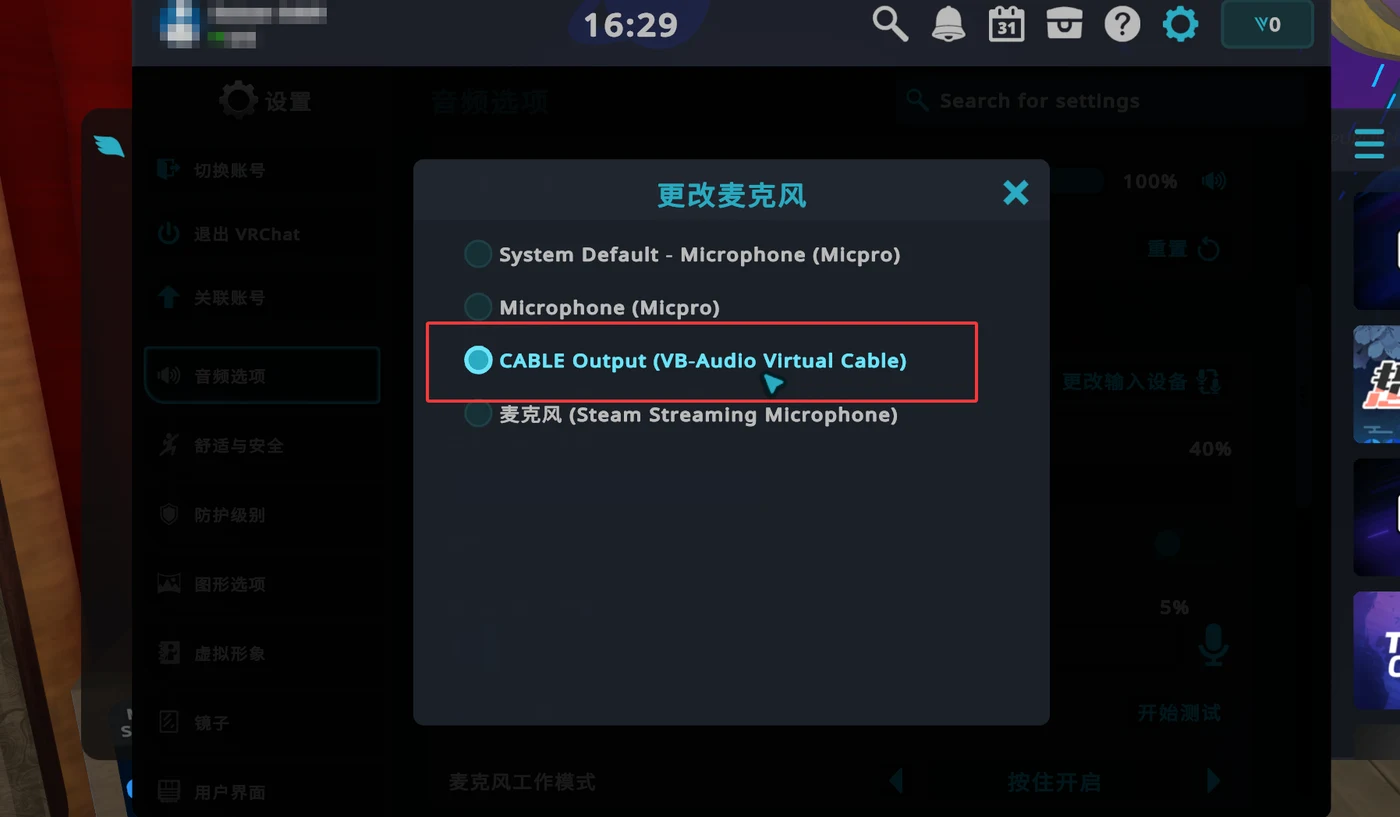
Keep the speaker / output device on your headset — do not select CABLE there.
The Zoom and VRChat screenshots show the Chinese UI of those apps; the options are the same in other languages.
Step 4: Verify
- Ask a friend in the meeting / game to confirm they can hear the translation.
- Speak a sentence: the other side hearing the translation after about 2 seconds is normal — see FAQ Q13.
- Let only TransBox use your physical microphone. If the meeting app also captures it, the other side will hear the original voice and the translation overlapping.