Two-Way Call Interpretation Wizard
In Zoom, Teams, Tencent Meeting, Discord, and similar apps, TransBox can:
- Listen to the other party: foreign-language audio → subtitles + optional headset read-aloud;
- Speak on your side: you speak Chinese → translation + TTS → inject into the virtual microphone (the other party hears the translation).
Two-way call is not turned on automatically. Click [Two-way call] on the subtitle bar, or configure it under Settings → Call interpretation.
1. Two Outbound Modes
| Mode | What the other party hears | VB-CABLE required |
|---|---|---|
| Monitor (default) | You can still listen to the meeting / show subtitles on your side; outbound stays on the original-audio path | No |
| Pass original audio | Your original voice | No |
| Inject translation | Translation synthesized by TransBox (with your chosen voice) | Yes |
Press Ctrl+Shift+V to switch between outbound modes.
You can use TransBox without a virtual sound card: listen only, show subtitles only, or pass your original voice. A virtual microphone is needed only when you want the other party to hear the translation.
2. Listen to the Other Party (Inbound)
- Confirm the audio source on the subtitle bar:
- If the meeting app has exclusive output: select that meeting process;
- Or use All system audio.
- Set the source language / target language (default: English → Chinese).
- Turn on Translation (optionally Source, and Read aloud to the headset).
- Under Settings → Call interpretation, you can choose the target app and whether to follow the foreground window.
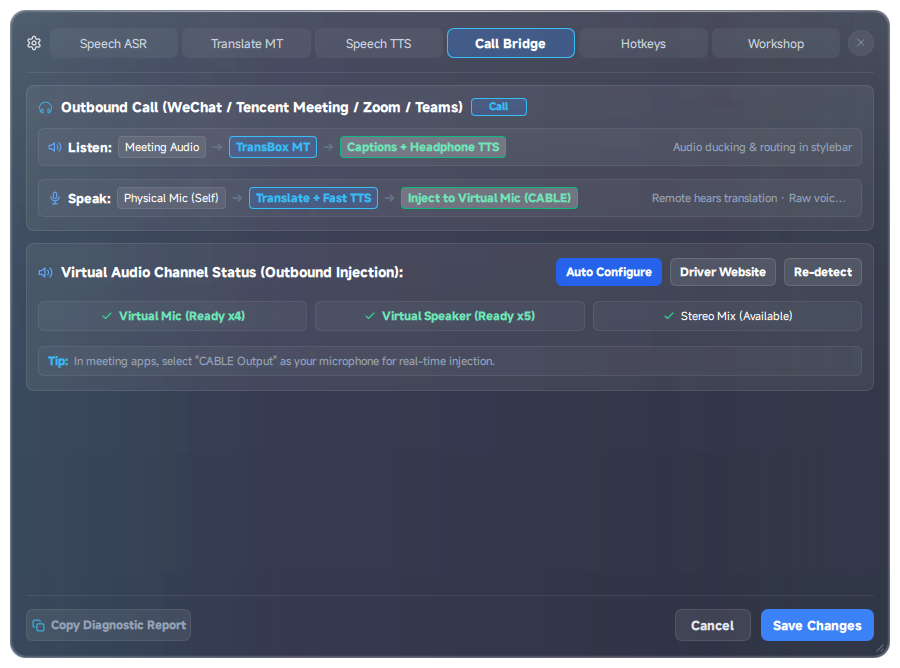
3. Speak and Inject Translation (VB-CABLE Required)
3.1 Install the Virtual Sound Card
- Open Settings → Call interpretation.
- Use Auto-configure virtual sound card / Auto-configure driver, or install from the official VB-CABLE page.
- After installation, click Re-detect and confirm that the virtual microphone / virtual speaker is recognized.
3.2 Routing Alignment (Critical)
| Location | What to select |
|---|---|
| TransBox TTS / inject output target | CABLE Input (VB-Audio Virtual Cable) |
| Meeting app microphone | CABLE Output (VB-Audio Virtual Cable) |
| Your physical microphone | Captured only by TransBox (select the real device on the bottom-track mic) |
| Read-aloud / monitor headset | A physical headset or the default output — do not point this at CABLE, or you may create a loop |
3.3 On the Subtitle Bar
- Turn on top-track Translation (the call state works cleanly only after at least one top-track option is on).
- Click [Two-way call] to expand the second row.
- Select the microphone device.
- Set the send mode to Inject translation.
- Speak Chinese and confirm that the other party hears the translation.
Echo prevention: the meeting app should listen only to CABLE Output; your headset should use the physical output; the physical microphone must not also be captured by the meeting app.
4. Defaults Related to Monitor / Passthrough
- The default outbound setup is Monitor: without configuring CABLE, you can already use subtitles and headset read-aloud.
- Duck original audio lowers meeting audio while TTS is speaking, avoiding overlapping languages.
- History keeps prefixes such as
[Us]/[Sent]/[Them]/[Translation]so you can review the call afterward.
5. Troubleshooting
The other party cannot hear the translation
Is the meeting microphone set to CABLE Output? Is the TransBox inject target set to CABLE Input? Is the send mode set to Inject translation?
Echo or feedback in your own headset
Check whether the physical microphone and CABLE output form a loop; switch the read-aloud device to your headset; if needed, use Pass original audio only.
I only want to listen and show subtitles — not be heard
Turn off the microphone, or keep the send mode on passthrough / turn off the bottom track, and enable only top-track Translation.