Getting Started
Welcome to TransBox
This manual targets the Windows 10/11 64-bit client. UI strings follow the Simplified Chinese version; use the language button on the floating bar to switch the interface language.
1. System Requirements
| Dimension | Minimum (cloud engines only) | Recommended (default local offline engines) |
|---|---|---|
| OS | Windows 10 64-bit | Windows 11 64-bit |
| CPU | Modern quad-core | 6 cores or more |
| Memory | 8 GB | 16 GB or more |
| GPU | Integrated graphics sufficient for cloud | Dedicated NVIDIA GPU with 6 GB+ VRAM (faster local ASR/MT) |
| Network | Required for the first local model download | Always required for cloud engines |
The factory default is local engines (speech recognition Qwen3-ASR, machine translation Tencent Hunyuan Hy-MT2-1.8B, speech synthesis Kokoro-82M).
- If local models are not yet downloaded, opening Translation or Read aloud will prompt you to download them first, or you can switch to cloud services in Settings.
Local vs. cloud is your choice: TransBox only provides the client and protocol adapters. It does not resell third-party API quota. For details, mirrors, proxies, and responsibility boundaries, see Engines & Models.
2. Install and First Launch
- Purchase and install TransBox from the Steam Store.
- Launch the app. You should normally see:
- A system tray icon (bottom-right of the taskbar), labeled “TransBox - Real-time AI Bilingual Subtitles & Speech Interpretation”;
- A always-on-top subtitle overlay on screen, showing a welcome message:
“Welcome to TransBox Simultaneous Interpretation · Click Source or Translation above to start.”
If TransBox is already in the tray, double-clicking the launcher again will not open a second instance (single-instance lock).
3. Basic Walkthrough
- Confirm the audio source: the default is “All system audio” (speaker loopback). Play video or game audio and it will be captured. The app can capture per-application audio; select the app you want transcribed.
- Turn on Source: click the [Source] capsule on the control bar. (The app uses your selected speech recognition model to transcribe audio into text and show it on the subtitle bar.)
- Turn on Translation: click the [Translation] capsule on the control bar. (The app uses your selected machine translation model to translate the transcript and show it on the subtitle bar.)
- Turn on Read aloud: click the [Read aloud] capsule. Translated text is spoken automatically, and the app will duck other apps’ volume.

- Local models may take a moment to load. Wait until loading finishes before continuing.
- Enable [Translation] and [Read aloud] only when needed.
- Handle model prompts:
- If you see “Local offline model not downloaded yet” → follow the prompt to download the local model, or open Settings → Speech Recognition / Machine Translation and switch to cloud with an API key;
- If you see “Cloud API key not configured yet” → enter the key on the corresponding settings page.
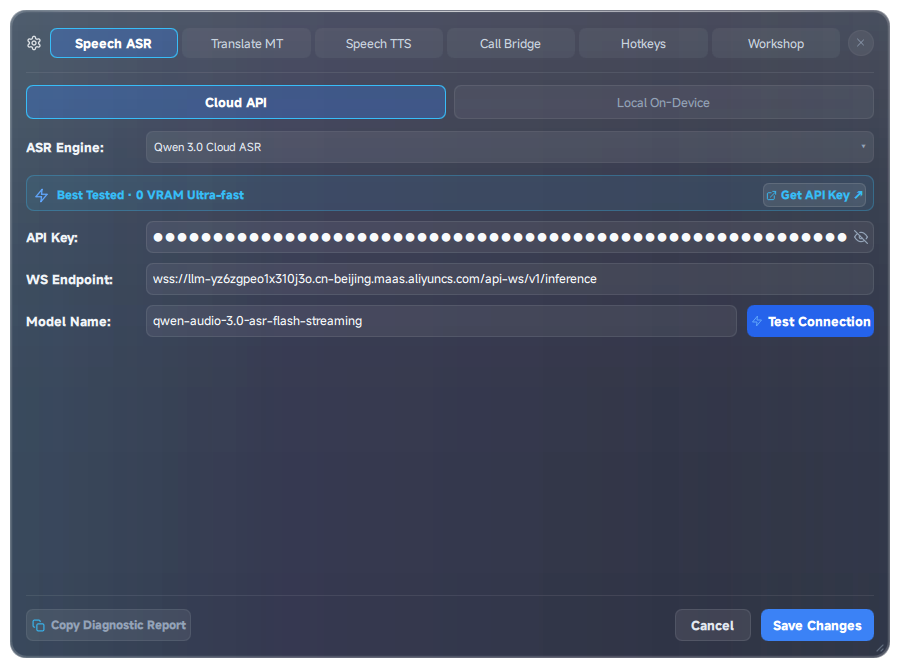
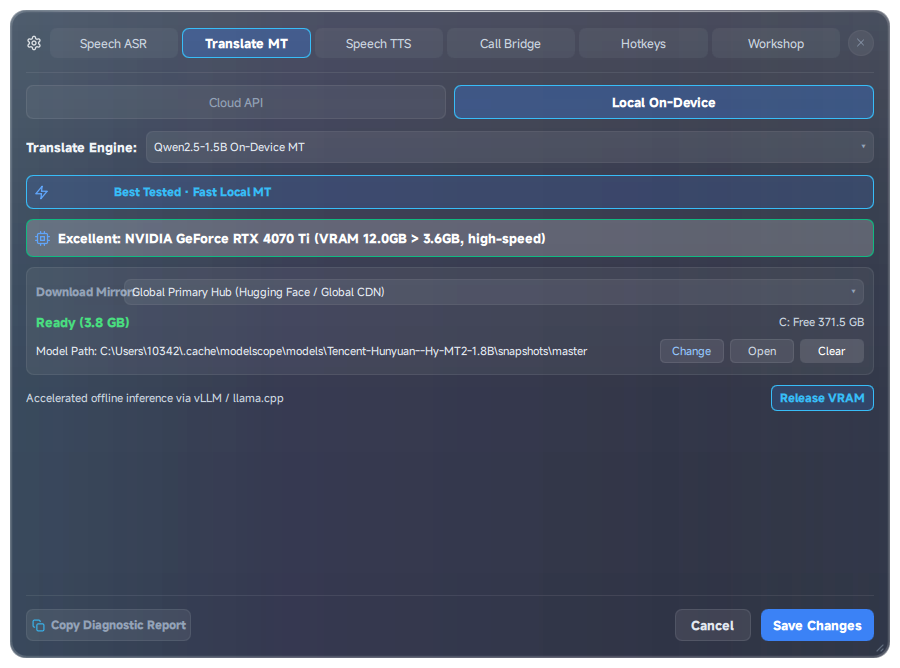
- Play foreign-language content: YouTube, local video, meeting apps, and so on. Source and/or translation should appear in the subtitle area.
- Optional: turn on Read aloud: click [Read aloud] so the translation is spoken by TTS. By default this ducks other apps’ volume (you can turn off Duck original audio on the control bar).
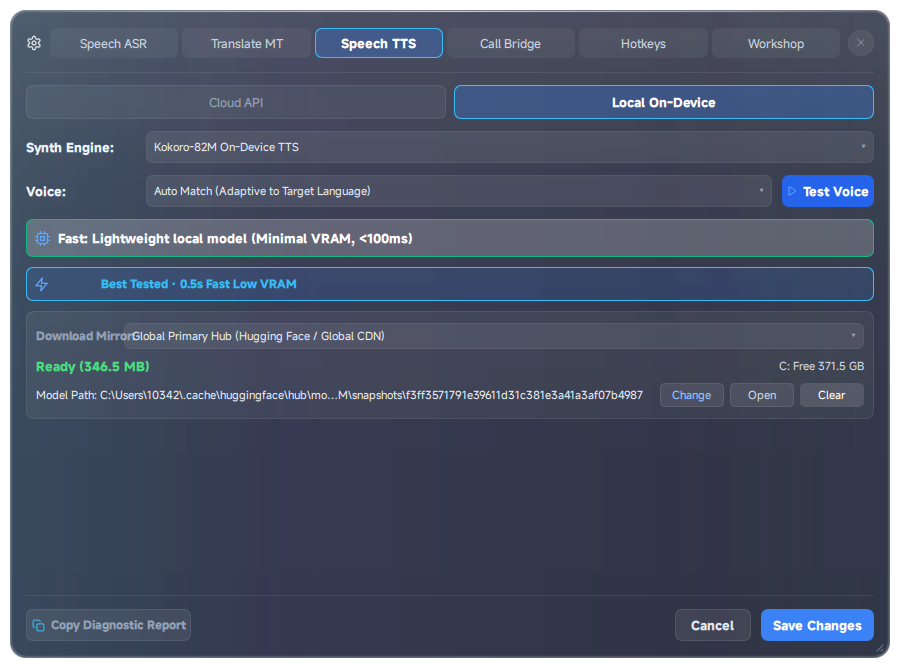
- Save settings: after changing options in Settings, click [Save & Apply] at the bottom.
Once done, you can use global hotkeys for hands-free control in games or fullscreen apps (see the quick-reference table below).
4. Default Configuration Overview (verified against source when written)
| Item | Default |
|---|---|
| Audio source | All system audio (system loopback) |
| Top-track source / target language | English → Chinese |
| Bottom-track (our speech) source / target language | Auto → English (enable Two-way call first) |
| Speech recognition | Local Qwen3-ASR |
| Machine translation | Local Tencent Hunyuan Hy-MT2-1.8B |
| Speech synthesis | Local Kokoro-82M |
| Duck original audio | On (reduced to about 25%) |
| Browser caption service | Off |
| Call outbound mode | Monitor (remote party still hears original audio) |
| Auto-start interpretation | No (click Source/Translation/Read aloud, or the Quick interpretation hotkey) |
5. What You Can Do from the System Tray
Right-click the tray icon:
| Menu item | Action |
|---|---|
| Show / Hide subtitle window | Toggle the floating subtitle bar |
| Start / Pause live interpretation | Start or stop the interpretation pipeline (same as the Quick interpretation hotkey) |
| Open Settings | Engines, calls, hotkeys, Workshop, and more |
| Open History panel | Review and export past lines |
| Official user manual | Open this documentation site |
| Open log directory | Package logs for troubleshooting |
| Support & feedback | GitHub Issues |
| Exit TransBox | Choose minimize-to-tray or full exit |
Double-click the tray icon = show/hide the subtitle window.
6. Global Hotkey Quick Reference (defaults)
Editable under Settings → Hotkeys; conflict detection is supported.
| Function | Default hotkey | Behavior |
|---|---|---|
| Boss key | Ctrl + Shift + H | Show/hide the subtitle window |
| Quick interpretation | Ctrl + Shift + T | Start/stop the interpretation pipeline in one press |
| Mouse passthrough | Alt + L | Click-through the subtitle window (press again to restore) |
| Settings panel | Ctrl + Shift + P | Show/hide Settings |
| History panel | Ctrl + Shift + Y | Show/hide the history window |
| Increase font size | Ctrl + = | Font size +2 (about 14–60 px) |
| Decrease font size | Ctrl + - | Font size -2 |
| Show source | Alt + S | Toggle source transcript |
| Show translation | Alt + D | Toggle translation |
| Call outbound mode | Ctrl + Shift + V | Switch between “Inject translation” and “Pass original audio” |
| Interpretation read-aloud | Ctrl + Shift + R | Toggle TTS |
| Swap languages | Ctrl + Shift + K | Swap source and target languages |
7. What to Read Next
| I want to… | Go to |
|---|---|
| Adjust subtitle look, click-through, or bar controls | Desktop floating subtitle bar guide |
| Use browser captions on YouTube, Bilibili, and similar sites | Web & video caption extension guide |
| Two-way call interpretation in meetings | Two-way call interpretation wizard |
| Catch missed lines and export notes | History panel |
| Subscribe to theme / glossary MODs | Steam Workshop & glossary management |
| Choose local vs. cloud engines, download, and proxies | Engines & Models |
| Troubleshoot a problem | FAQ |