FAQ & Troubleshooting
Collected against the real default hotkeys and UI paths. Most issues can be located in 1–2 minutes.
Read first: Engines & Models — how to choose local vs. cloud, download mirrors and optional proxies, and third-party API responsibility boundaries.
Q1: The subtitle overlay does not appear after launch?
A
- Check the tray for TransBox; double-click the tray icon or use the menu Show / Hide subtitle window;
- Try the boss key
Ctrl+Shift+H; - After multi-monitor changes or a resolution switch, the window may be off-screen: reset the window position from the tray or the related Settings entry, or hide it and show it again.
Q2: The subtitle bar is there, but there is no translation/source?
A
The top track is not started automatically. Hover the control bar and turn on at least [Translation] (optionally [Source]).
If you see a prompt that the local model is not downloaded or the cloud key is not configured: go to Settings → Speech Recognition / Machine Translation, download the model or switch to cloud and enter the key, then click Save & Apply.
The default local translation model is Tencent Hunyuan Hy-MT2-1.8B (about 3.6 GB). See Engines & Models.
Q3: Hotkeys differ from older articles — which should I trust?
A Trust Settings → Hotkeys and this manual’s default table:
| Function | Default |
|---|---|
| Boss key | Ctrl+Shift+H |
| Quick interpretation | Ctrl+Shift+T |
| Settings | Ctrl+Shift+P |
| History | Ctrl+Shift+Y |
| Mouse passthrough | Alt+L |
| Source / Translation | Alt+S / Alt+D |
| Read aloud | Ctrl+Shift+R |
| Call outbound mode | Ctrl+Shift+V |
| Swap languages | Ctrl+Shift+K |
Alt+Q, Alt+M, Alt+H, and similar keys are not current defaults.
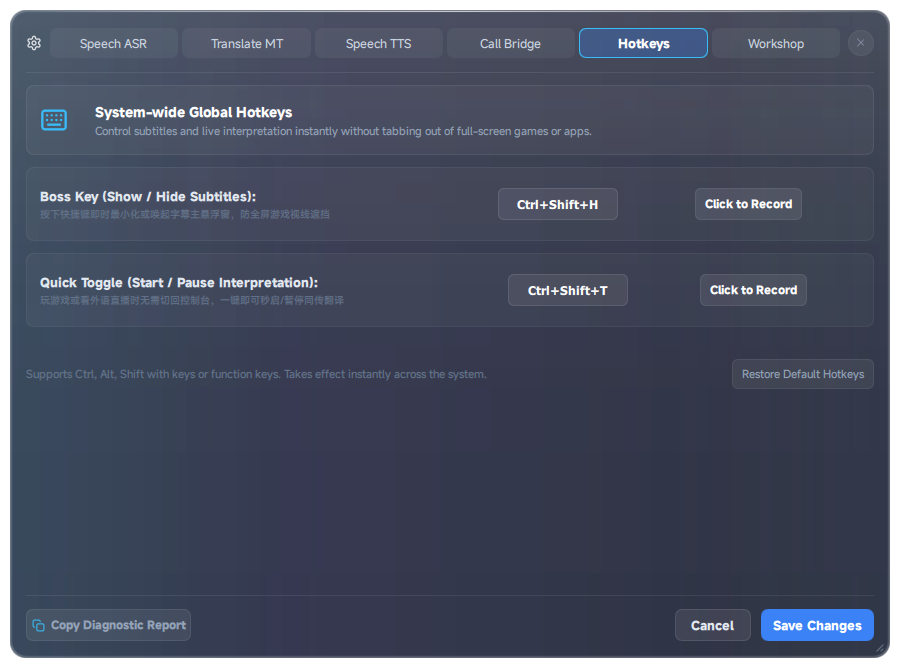
Q4: After enabling mouse passthrough, I cannot click the subtitle bar?
A Press Alt+L again to turn passthrough off. While passthrough is on, clicks pass through to the window below — that is expected.
Q5: In Zoom / Tencent Meeting, the other party cannot hear my translation?
A Check in this order:
- You have clicked [Two-way call] on the subtitle bar, and the send mode is Inject translation;
- TransBox inject output =
CABLE Input (VB-Audio Virtual Cable); - Meeting app microphone =
CABLE Output (VB-Audio Virtual Cable); - VB-CABLE is installed and the settings page detection passes (you can use Auto-configure driver);
- Your physical microphone is used only by TransBox, and is not also captured by the meeting app.
If you only want to listen and show subtitles, the default monitor / passthrough modes are enough — CABLE is not required.
Q6: Browser caption mode has no “🌐 Browser captions” audio source?
A
- Settings → Browser captions — turn on the service (default port 8765);
- Confirm the built-in Browser native captions plugin is not disabled;
- The extension directory name must be
browser-extension; - Refresh the Workshop / restart the browser and try again.
Q7: Read-aloud has echo, or it disturbs others?
A
- Point the control bar’s Read-aloud device at your headset;
- Keep Duck original audio on;
- In call scenarios, do not point the read-aloud device at CABLE, or you may create a loop.
Q8: Terminology is wrong — character or item names are mistranslated?
A
Use or subscribe to a glossary extension. When building your own, prefer terms.json; if you use terms.txt, the separator must be = or Tab — not -> / =>. See Workshop & glossaries.
Q9: A plugin is enabled but has no effect?
A
- Check whether a theme / language pack was disabled by another full theme or language pack;
- Engine plugins must be selected as the current engine in the ASR / MT / TTS settings;
- Middleware and glossaries need to stay enabled;
- Still broken: use Safe reset in the Workshop, then re-enable items one by one; for code plugins, use only trusted sources.
Q10: How do I export troubleshooting info?
A
At the bottom of Settings you will find Copy diagnostic info and Open log directory. When reporting an issue, attach the logs and reproduction steps to GitHub Issues or the Steam community.
Q11: Local model download is very slow or fails?
A
- Settings → the relevant engine → Download mirror — choose “China high-speed mirror”;
- If it still fails, enable Proxy download on the download card and set the address to match your local proxy (commonly
http://127.0.0.1:7897, but the port may differ); - Overseas users can usually use the “Global official node” and do not need a proxy;
- Reserve disk space: about 1.2 GB for ASR, 3.6 GB for MT, and 350 MB for TTS.
Q12: Cloud keeps returning 429 / connection failures?
A
- Confirm that the API key, Base URL, and model name match the provider console, and click Test connection first;
- Rate limits are counted against the provider’s primary account (multiple keys are merged); personal-tier concurrency is usually enough for a single user; sharing one key competes for quota;
- Check quota / billing status in the provider console and raise the limit if needed;
- This is an upstream limit — TransBox does not resell or host that quota. See Engines & Models.
Q13: Does the software include cloud costs?
A
No. The Steam purchase covers the TransBox client license only.
- Local open-weights models can be downloaded and used for free (you handle bandwidth and disk);
- For cloud services, sign up and pay with providers such as Alibaba Cloud / Tencent Cloud / Xiaomi yourself;
- Third-party model names, pricing, and availability follow each provider’s announcements.