Steam Workshop Packaging & Publishing
Once your MOD is done, here is how to turn it into a Workshop item players can subscribe to. Follow what the current client actually supports and avoid unimplemented CLIs.
1. Pre-publish Checklist
- [ ] Valid
mod.jsonat the root with a uniqueid - [ ]
entrypointpoints at a real file (and class name) - [ ] Provide
icon.svg/icon.png(recommended) - [ ] Data files saved as UTF-8
- [ ] No local absolute paths, API keys, or private data
- [ ] Enabled and verified in the local Extension Workshop
- [ ] Glossary-type: text separator is
=or Tab (not->)
2. Export a Zip in the Client
- Launch TransBox → Settings → Extension Workshop
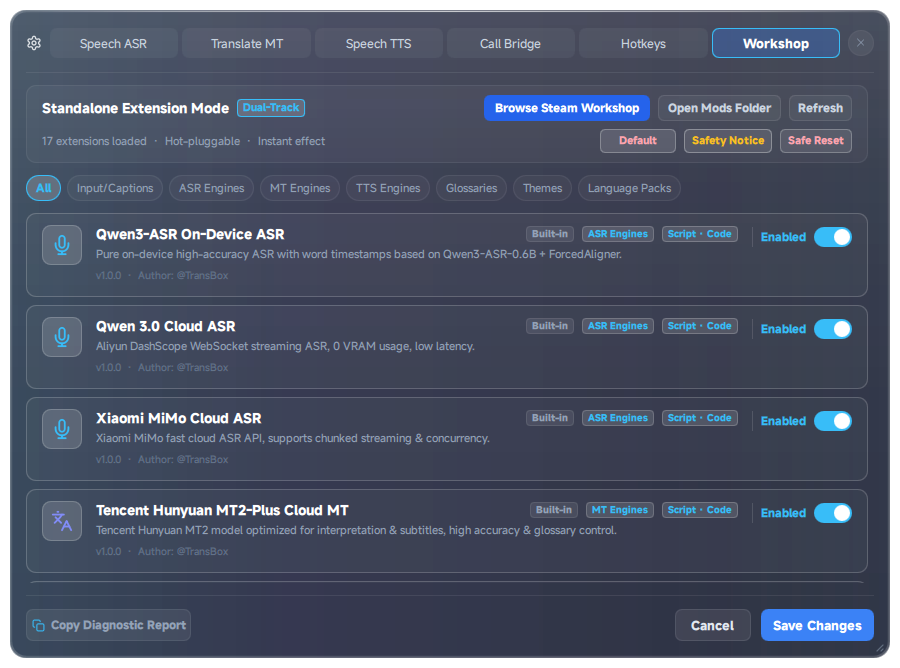
- Find your local MOD card
- Click Export
- You get a file named like:
transbox_mod_<id with dots replaced by underscores>_v<version>.zip
(for examplemyteam.mt.demo→transbox_mod_myteam_mt_demo_v1.0.0.zip)
The export packs the plugin directory contents for Workshop upload.
3. Upload to Steam Workshop
- Open the Steam client and go to the TransBox Workshop (AppID 1316080).
- Use the Steam Workshop publish entry to upload your zip / files (or use the Steamworks backend per official instructions).
- Fill in title, description, screenshots, and preview image.
- Set visibility to Public.
- After players click Subscribe in the Workshop, TransBox Extension Workshop → Refresh loads it.
The Settings page also has a Browse Steam Workshop shortcut.
4. Outdated Commands You Must Not Use
From older docs:
powershell
python -m transbox.plugins.steam_ugc --upload path/to/mod.zipThis CLI and upload API do not exist in the current code (steam_ugc.py has no __main__, no argparse, and no ISteamUGC upload).
What the module actually does:
- Probe the Steam environment and Workshop install path
discover_workshop_mod_paths()scans subscribed MODsexport_mod_for_workshop(source_dir, output_zip)creates the zip- AppID defaults to
1316080(override with env varTRANSBOX_STEAM_APP_ID)
Upload through Steam’s official Workshop flow. If a future client adds an upload button or CLI, follow the new version’s manual.
5. Player-side Subscription Instructions (paste into Workshop description)
- Subscribe to this item in Steam Workshop;
- Launch TransBox;
- Open Settings → Extension Workshop;
- Confirm the MOD appears in the list and turn the switch on;
- Engine types: select the corresponding engine under Speech Recognition / Machine Translation / Speech Synthesis;
- Themes / language packs: take effect immediately on enable (may be mutually exclusive with other full themes/language packs).
6. Safety & Compliance
- Do not include trojans, miners, disk-damaging code, or unauthorized upload of private data;
- Do not tamper with the host application’s global configuration;
- Script-type plugins run with the same permissions as the host; document permissions and network behavior in the description;
- Violating content may be removed from the Workshop.
7. Version Upgrades
- Increment
versioninmod.json - Re-export the zip
- Upload the new version on Steam (update the original item)
- Remind subscribers to refresh in the client or restart TransBox